
Fusion Toolkit Documentation
Install and operate the CLI, SQL Studio, and governed AI Administrator with explicit security, data-flow, audit, and recovery guidance.
- About
- Release notes
- Getting Started
- Schedule ESS Jobs
- Downloading and Uploading BI Publisher Reports
- Running BI Publisher Reports
- Running SQL Queries in CLI
- Running SQL Queries
with Oracle Cloud SQL Studio - Swiss QR Bill Processing
- REST & SOAP API Clients
- UCM & Daily Rates
What is Fusion Toolkit?
Fusion Toolkit combines three local product surfaces for Oracle Cloud ERP: a scriptable CLI, desktop SQL Studio, and the governed AI Administrator package for your chosen compatible agent or local model runtime. Credentials and execution authority remain in the Toolkit.
Built for developers, IT administrators, and ERP consultants, this toolkit eliminates manual processes, reduces errors, and enhances efficiency when working with Oracle Cloud ERP.
Key Features & Capabilities
- Run SQL Queries Directly – Execute SQL queries on Oracle Cloud without the need for BI Publisher data models and its 200-row limit.
- Automate ESS Jobs – Schedule and monitor Oracle ESS jobs via cron, ensuring reliable execution without unnoticed failures.
- BI Publisher Management – Upload, download, and manage reports and data models effortlessly.
- Governed Local Execution – Credentials, licence enforcement, immutable plans, approval policy, verification, and Oracle transport stay local. Prompts and selected bounded output remain local with a complete local agent/runtime, or may be processed by your chosen model provider.
- CLI & API Support – Call Oracle Cloud’s REST SOAP APIs securely from the command line for additional automation use cases.
- Swiss QR Bill Processing – Automate extraction of payment data from Swiss QR invoices and patch Oracle Cloud ERP invoices, enabling end-to-end Accounts Payable automation.
Fusion Toolkit is designed for flexibility, allowing businesses to integrate it into local machines, Linux servers, or Kubernetes-based cron jobs for robust Oracle Cloud automation.
Why Use Fusion Toolkit?
Remove Oracle Cloud Limitations
BI Publisher’s 200-row limit and complex data model setup make simple queries a hassle. Fusion Toolkit removes these barriers — no 200-row ceiling, and no data model to build first.
Ensure Reliable ESS Job Scheduling
Oracle Cloud’s built-in ESS job scheduling is unreliable, often getting stuck without notifications. Our toolkit lets you automate ESS jobs via cron, preventing unnoticed failures.
Full Control & Clear Data Flow
The Toolkit runs on your infrastructure—local machines, Linux servers, or Kubernetes. A compatible Ollama or local Qwen agent can keep prompts and selected results local; Codex, Claude, Gemini, and other provider-backed agents may process the context you share under their account controls. Review the complete security and data flow.
Built for Automation & Integration
Whether you need to export financial data, automate reporting, or integrate third-party systems, this CLI-based tool empowers developers and IT teams to streamline Oracle Cloud operations.
Free for 30 days. Register, activate your email, and your licence is issued immediately. No card. Start your free 30 days, then follow Getting Started.
Release Notes – Fusion Toolkit
Stay up to date with the latest improvements, new features, and bug fixes in Fusion Toolkit.
Version 3.1.0 (August 2026)
Generic documented API model, chat approval, and schema 2.0
- Current documentation first – AI Administrator refreshes and searches the checksummed Oracle catalogue, then executes documented same-origin operations through generic
ai-admin apirequests and reusable recipes. - Later explicit approval – A complete immutable plan is displayed before approval. A subsequent chat message is the normal approval path; a controlling-terminal phrase remains an optional fallback.
- One-shot execution and verification – Writes are never retried automatically after ambiguity, fixed batches never expand, exact counts are reported, and independent verification is required wherever Oracle provides a route.
- Schema 2.0 and broader agents – Codex, Claude, and Gemini adapters share one canonical contract. Compatible Ollama or local Qwen agent runtimes can keep model processing local.
Read the AI Administrator 3.1 overview.
Version 3.0 (August 2026)
AI Administrator, governed mutation plans, and machine contract 1.0
- Third product surface – One shared Codex/Claude skill routes supported invoice, expense, worker/account, data-security, purchase-order, ESS, BI Publisher, and bounded SQL workflows.
- Human-gated writes – Ten-minute, single-use plans bind the profile, declared environment, origin, actor, target, current fingerprint, payload, and verification. In 3.1, apply follows later explicit chat approval, with the controlling-terminal phrase retained as an optional fallback.
- Stable automation contract – JSON schema 1.0, documented exits, bounded pagination, same-origin credentials, no ambiguous mutation retry, and restrictive redacted audit records.
Read the AI Administrator overview.
Version 2.2 (April 2026)
UCM File Retrieval, Swiss Daily FX Rates & QR Bill Stats Output
- New command
ucm-fetch-file– Download files (single file or latest matching a--name-prefix) from Oracle Universal Content Management (UCM) with optional automatic--unzipof ZIP payloads. - New command
import-daily-rates– Fetch the Swiss Federal Office for Customs and Border Security (BAZG) daily FX feed and import it directly into Oracle CloudGL_DAILY_RATES_INTfor General Ledger conversion. qr-bill-invoice-hold-processor --stats-file– Emit a structured JSON run summary (processed / succeeded / failed / failed_by_reason breakdown, timestamps, duration) for monitoring and alerting pipelines.
Version 2.1 (March 2026)
Resilience, Pagination & Operator Ergonomics
- Exponential-backoff retries – New
--max-retriesoption on bothoracle-cloud-rest-clientandoracle-cloud-soap-client, automatically retrying transient network errors and HTTP 502/503/504 responses. - REST pagination –
oracle-cloud-rest-client --paginateand--page-sizeto transparently walk every page of an Oracle REST collection. - ESS job polling controls –
submit-ess-job --no-poll,--poll-intervaland--max-waitfor fine-grained control over how long the CLI waits for an ESS job to finish. sql-query --trim-cells– Strip leading and trailing whitespace from every CSV cell emitted by SQL query runs.bi-publisher-download --overwrite– Opt-in overwrite of existing output files when re-downloading reports.- QR Bill progress log – The QR Bill hold processor now prints per-invoice progress so long batch runs are observable in real time.
Version 2.0 (April 2026)
Major Release: Swiss QR Bill Processing & SQL Studio v2 Rework
New Feature: QR Bill Invoice Hold Processor
Automate Swiss Accounts Payable processing end-to-end. The qr-bill-invoice-hold-processor command fetches invoices held due to missing QR payment data, downloads PDF attachments, extracts the Swiss QR code, patches the invoice with the decoded payment information, and releases the hold — all in a single command.
New Feature: QR Decoder
A standalone qr-decoder command for decoding Swiss QR Bill payment codes from PDFs, images, or raw text. Supports two decoding engines (ZXing and BoofCV) for maximum compatibility, with optional JSLT-based transformation.
Oracle Cloud SQL Studio v2
- Schema Browser – Browse Oracle Cloud tables, views, and columns directly in a tree view with lazy loading and caching.
- Progress Indicators – Visual feedback during query execution and schema loading.
- Improved Tab Management – Close Others and Close All context menu options for SQL editor tabs.
- SQL Directory Validation – The application now validates the SQL directory on startup.
- Security & Stability – Improved input validation and fixed concurrency issues for a more reliable experience.
Version 1.7 (January 2026)
New Feature: QR Decoder (standalone) – Decode Swiss QR Bill payment codes from PDFs, images, or raw text using ZXing and BoofCV engines.
- Support for JSLT-based output transformation.
- Multiple input formats: PDF, PNG, JPG, and plain text.
Version 1.6 (October 2025)
Improvements:
- Oracle Cloud SQL Studio: added SQL syntax highlighting with color-coded keywords.
- Oracle Cloud SQL Studio: added Find & Replace functionality in the SQL editor.
- Improved SOAP API authentication handling for better compatibility with Oracle Cloud updates.
Version 1.5 (July 2025)
Introducing Oracle Cloud SQL Studio!
New Feature: Oracle Cloud SQL Studio – A Windows-based SQL query tool with a user-friendly interface, offering SQL Developer-like functionality for executing queries on Oracle Cloud ERP.
- Run SQL Queries Locally – No BI Publisher setup needed.
- Windows Portable Application – No installation required.
- Auto-Save Queries & Results – Easily access executed SQL and export CSV results.
- Search in Query Results – Quickly find data using the built-in search bar.
- Prebuilt SQL Queries – Useful Oracle Cloud ERP administrator queries included.
Version 1.4 (April 2025)
New Feature: BI Publisher Run Report – Execute BI Publisher reports from the command line and export results in CSV, XLS, or PDF format. Supports report parameters.
- Added ESS Job retry mechanism with exponential backoff to prevent job failures due to Oracle Cloud delays.
- Resolved SQL query execution timing out on large datasets.
Version 1.3 (January 2025)
Improvements:
- Enhanced BI Publisher automation with improved upload/download stability.
- Stability improvements for BI Publisher downloads in high-latency environments.
- Improved error handling in Oracle REST API calls.
Version 1.2 (October 2024)
New Feature: BI Publisher Upload & Download – Upload, download, and migrate BI Publisher reports and folders between Oracle Cloud environments via SOAP API.
- Improved error messages for invalid Oracle credentials.
- CLI performance optimizations.
Version 1.1 (July 2024)
Improvements:
- Improved ESS job execution failure handling with clearer error reporting.
- Addressed an issue where certain SQL queries failed due to encoding mismatches.
- Optimized SOAP WS-Security authentication for better reliability.
Version 1.0 (April 2024 – First Release)
Initial release of Fusion Toolkit.
- SQL Query Runner – Execute SQL queries on Oracle Cloud ERP via CLI without BI Publisher data model limitations.
- ESS Job Submission – Submit and monitor Oracle ESS jobs from the command line, with cron and Kubernetes support.
- Oracle Cloud REST & SOAP Clients – Generic API clients for calling Oracle Cloud REST and SOAP services with automatic authentication.
- Secure Configuration – AES-encrypted credential storage for Oracle Cloud credentials and license keys.
Verify and Extract Fusion Toolkit 3.0
The supported Windows x64 and Linux x64 customer packages include a private Java 17 runtime. Customers do not install Java, set JAVA_HOME, or invoke java -jar.
Verify before extraction. Fusion Toolkit 3.0 packages are intentionally unsigned. Download the adjacent .sha256 file by appending .sha256 to the bundle URL, and compare it with the downloaded bundle. A checksum detects changed bytes but does not authenticate the publisher.
Linux checksum verification:
sha256sum -c fusion_toolkit_3.0.0.zip.sha256
Windows PowerShell checksum verification: compare this value with the hash in fusion_toolkit_3.0.0.zip.sha256.
Get-FileHash .\fusion_toolkit_3.0.0.zip -Algorithm SHA256
Set Up an Oracle Cloud ERP User
Fusion Toolkit requires an Oracle Cloud ERP user with appropriate permissions to execute queries, manage BI Publisher reports, and submit ESS jobs.
- You can use an existing user or create a new user in Oracle Cloud’s Security Console.
- Go to Oracle Cloud > Security Console > Users and create a user if needed.
- Assign the necessary roles:
- BI Administrator (Required for running SQL Queries)
- ESS Job Submitter Role (Required for submitting and monitoring ESS Jobs)
- Data Access Roles (Required for querying specific tables and reports)
Security requirement: Use a dedicated Oracle identity with only the roles and data access required for the selected workflow. Do not use a broad administrator merely to avoid permission errors.
Create Your Account & Download Fusion Toolkit
Fusion Toolkit requires a valid trial or paid licence to function. Account creation is the only way to start the free 30-day trial.
- Create your free account with your company email address.
- Activate your email address using the activation link sent after registration. Activation issues your signed 30-day trial licence automatically.
- Sign in to your dashboard, download the latest archive from Available Downloads, download its adjacent
.sha256file, and copy your licence key from Your Licences. - Verify the SHA-256 checksum before extraction. The unsigned packages use checksums for byte-integrity detection, not publisher authentication.
- Use the licence key when you configure the toolkit below. The trial expires automatically after 30 days without a charge or automatic paid conversion.
Prepare the Toolkit on Your Machine
Extract the Windows or Linux portable package to a location your account can read. Use the included launcher; the private Java runtime stays inside the package. Profiles, plans, SQL files, and audit records are stored outside the installation directory in the per-user Toolkit home.
Possible locations to store the toolkit:
– Local Machine – For Oracle Cloud SQL Studio, personal CLI use or testing.
– Linux Server – For scheduled jobs and production usage.
– Docker Container – To containerize and integrate with your CI/CD pipeline.
Configure Oracle Credentials & License Key
Before using the toolkit, you need to configure your Oracle Cloud credentials, environment, and license key.
Run the following command to create the configuration file:
    fusion-toolkit --profile test set-config \
        --username "SYNTHETIC_USER" \
        --origin "https://synthetic.example.invalid" \
        --environment test \
        --password-file ./oracle-password.txt \
        --license-file ./toolkit-licence.txt
The Toolkit reads secrets from a controlling-terminal prompt, explicit stdin option, or restrictive file/keychain reference; secrets are never accepted as command-line values. The profile’s declared environment and canonical HTTPS origin become immutable.
You are now ready to run SQL queries, automate BI Publisher reports, execute ESS jobs, and process Swiss QR Bill invoices!
Why Automate ESS Jobs?
Oracle Cloud ERP requires running numerous ESS (Enterprise Scheduler Service) jobs to keep the system functioning properly. These jobs are critical for tasks like:
- User & Role Synchronization (for SSO users)
- Invoice Importing (for Payables automation)
- Notification Synchronization (for workflow alerts)
However, scheduling these jobs inside Oracle Cloud’s ESS screen can be unreliable. They often get stuck without alerts, making troubleshooting difficult.
Use Fusion Toolkit to schedule ESS jobs via cron (Linux server) or Kubernetes CronJobs for better control, monitoring, and reliability.
How to Find the Metadata Name and Parameters of an ESS Job
Before using the submit-ess-job command, you must determine the exact metadata name (also called jobDefinitionName) and any required parameters for the job.
Steps:
- Go to Oracle Cloud > Tools > Scheduled Processes.
- Manually run the ESS job you want to automate, selecting all expected parameters.
- Once it has run, search for the job in the history list.
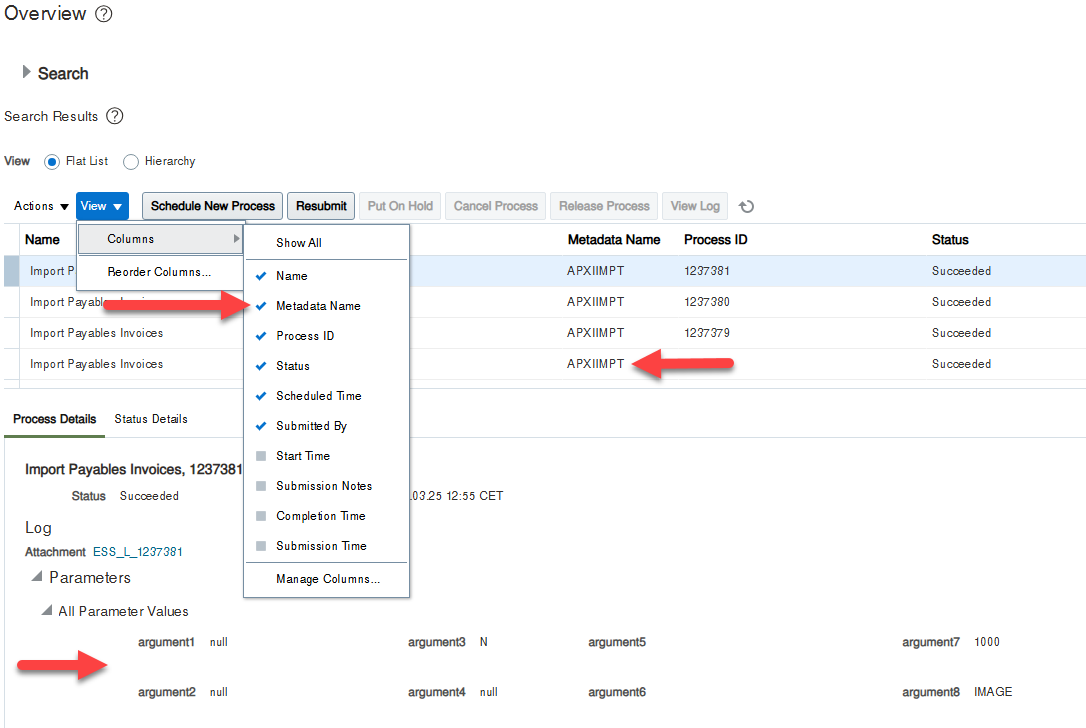
- Add the “Metadata Name” column to the table using the View menu
- Select the executed job, then click “Parameters” > “All Parameter Values”.
- Take note of:
- The Metadata Name (e.g.,
APXIIMPT), which is the value to use in--jobDefinitionName - The parameters, which must be passed via
--parameters="..."(in the same order and format)
- The Metadata Name (e.g.,
Example:
For the ESS job “Import Payables Invoices”, the metadata name is APXIIMPT, and parameters might look like:
Where Does --jobPackageName Come From?
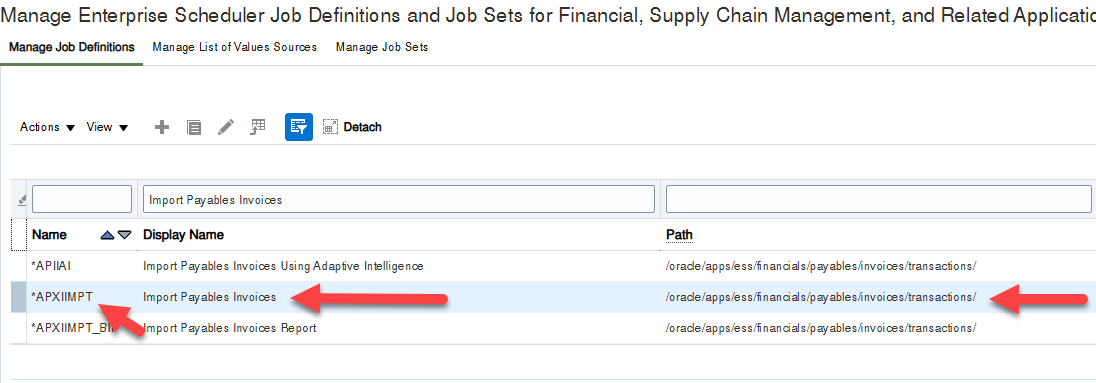
The value you use for --jobPackageName (e.g., /oracle/apps/ess/financials/payables/invoices/transactions/) isn’t usually visible in the UI or Oracle documentation by default.
How to find it:
- Go to Setup and Maintenance in Oracle Cloud.
- Search for the task: Manage Enterprise Scheduler Job Definitions.
- Depending on your module, use one of these:
- Manage Enterprise Scheduler Job Definitions and Job Sets for Customer Relationship Management and Related Applications
- Manage Enterprise Scheduler Job Definitions and Job Sets for Financial, Supply Chain Management, and Related Applications
- Manage Enterprise Scheduler Job Definitions and Job Sets for Human Capital Management and Related Applications
- Search for your job by display name (e.g., “Import Payables Invoices”).
- Click on the result. You will see:
- Job Definition Name (e.g.,
APXIIMPT) - Job Package Name (e.g.,
/oracle/apps/ess/financials/payables/invoices/transactions/) - Parameter structure (if applicable)
- Job Definition Name (e.g.,
This is the information you need to construct the correct command for the toolkit.
How to Submit an ESS Job Using the Toolkit
To submit an ESS job, use the following command structure:
    java -jar ./fusion-cli-toolkit.jar submit-ess-job \
        --jobPackageName="JOB_PACKAGE_NAME" \
        --jobDefinitionName="METADATA_NAME" \
        --parameters="PARAMETERS_IF_NEEDED"
Controlling How Long the CLI Waits (v2.1+)
By default, submit-ess-job submits the job and then polls Oracle Cloud every 10 seconds, giving up after 30 minutes. Three options let you tune that behaviour — useful for long-running imports and for fire-and-forget cron jobs:
--no-poll– Submit the job and return immediately once Oracle Cloud accepts the request. Useful when you only need to trigger the job and don’t care about its outcome in the same process.--poll-interval– Seconds between status checks (minimum 2, default 10). Increase to reduce API pressure on long-running jobs, or decrease for faster feedback on short ones.--max-wait– Total seconds to wait for the job to finish before the CLI returns a timeout exit code (default 1800 = 30 min). Set this higher for imports that can legitimately run for an hour or more.
Example — poll every 30 seconds and wait up to one hour:
    java -jar ./fusion-cli-toolkit.jar submit-ess-job \
        --jobPackageName="/oracle/apps/ess/financials/payables/invoices/transactions/" \
        --jobDefinitionName="APXIIMPT" \
        --poll-interval 30 \
        --max-wait 3600
Recommended ESS Job Schedules & Commands
Here are essential ESS jobs that should be automated using cron or Kubernetes CronJobs for optimal Oracle Cloud ERP performance.
Import Payables Invoices (Every Hour, Daytime Only)
If using Intelligent Document Recognition (IDR) to import invoices, schedule this job hourly during business hours.
Command:
  java -jar ./fusion-cli-toolkit.jar submit-ess-job \
  --jobPackageName="/oracle/apps/ess/financials/payables/invoices/transactions/" \
  --jobDefinitionName="APXIIMPT" \
  --parameters="<typ:paramList>#NULL</typ:paramList><typ:paramList>#NULL</typ:paramList><typ:paramList>N</typ:paramList><typ:paramList>#NULL</typ:paramList><typ:paramList>BLOCK_REASON</typ:paramList><typ:paramList>BLOCK_DESCRIPTION</typ:paramList><typ:paramList>1000</typ:paramList><typ:paramList>IMAGE</typ:paramList><typ:paramList>#NULL</typ:paramList><typ:paramList>N</typ:paramList><typ:paramList>N</typ:paramList><typ:paramList>300000002904863</typ:paramList><typ:paramList>#NULL</typ:paramList><typ:paramList>1</typ:paramList>"
Cron Schedule:
0 8-18 * * * (Runs every hour from 8 AM to 6 PM)
Confirm Receipt (Once a week)
Ensures that self-service receiving transactions are confirmed.
Command:
    java -jar ./fusion-cli-toolkit.jar submit-ess-job \
        --jobPackageName="/oracle/apps/ess/scm/receiving/selfService/confirmReceipt" \
        --jobDefinitionName="ConfirmReceiptJob"
Cron Schedule :
0 9 * * 5 (Runs every Friday at 9 AM)
Import User And Role Application Security (Every Hour, If Using SSO)
Syncs SSO users and roles in Oracle Cloud.
Command:
    java -jar ./fusion-cli-toolkit.jar submit-ess-job \
        --jobPackageName="/oracle/apps/ess/hcm/applicationsSecurity/" \
        --jobDefinitionName="AseImportUserAndRolesJob"
Cron Schedule:
0 * * * * (Runs every hour)
Import User and Role Application Security Data (Every Hour, If Using SSO)
Another important sync job for SSO authentication.
Command:
    java -jar ./fusion-cli-toolkit.jar submit-ess-job \
        --jobPackageName="/oracle/apps/ess/cdm/foundation/parties" \
        --jobDefinitionName="HzPartyUserGuidSyncJob"
Cron Schedule:
0 * * * * (Runs every hour)
Retrieve Latest LDAP Changes (Every Hour, If Using SSO)
Ensures Oracle Cloud receives the latest user role changes.
Command:
    java -jar ./fusion-cli-toolkit.jar submit-ess-job \
        --jobPackageName="/oracle/apps/ess/hcm/users/" \
        --jobDefinitionName="SyncRolesJob"
Cron Schedule:
0 * * * * (Runs every hour)
Synchronize Bell Notifications (Every 5-10 Minutes)
Ensures real-time notifications for users (workflow alerts, pending approvals).
Command:
    java -jar ./fusion-cli-toolkit.jar submit-ess-job \
        --jobPackageName="/oracle/apps/ess/financials/commonModules/shared/common/interfaceLoader/" \
        --jobDefinitionName="SyncBellNotifications"
Cron Schedule:
*/10 * * * * (Runs every 10 minutes)
Automating ESS Jobs with Cron or Kubernetes
Setting Up Cron on a Linux Server
- Open the crontab editor:
crontab -e
- Add your ESS job schedules (example for invoice import & notifications):
    0 8-18 * * * java -jar ./fusion-cli-toolkit.jar submit-ess-job --jobPackageName="/oracle/apps/ess/financials/payables/invoices/transactions/" --jobDefinitionName="APXIIMPT"

    */10 * * * * java -jar ./fusion-cli-toolkit.jar submit-ess-job --jobPackageName="/oracle/apps/ess/financials/commonModules/shared/common/interfaceLoader/" --jobDefinitionName="SyncBellNotifications"
- Save and exit. Cron will now execute these jobs automatically.
Setting Up Kubernetes CronJobs
If you’re using Kubernetes, define a CronJob YAML file:
    apiVersion: batch/v1
    kind: CronJob
    metadata:
      name: import-payables-invoices
    spec:
      schedule: "0 8-18 * * *"
      jobTemplate:
        spec:
          template:
            spec:
              containers:
              - name: fusionToolkit-ess-job
                image: openjdk:17
                command: ["java", "-jar", "/fusionToolkit/fusion-cli-toolkit.jar", "submit-ess-job",
                          "--jobPackageName=/oracle/apps/ess/financials/payables/invoices/transactions/",
                          "--jobDefinitionName=APXIIMPT"]
              restartPolicy: OnFailure
Apply it using:
kubectl apply -f ess-job-cron.yaml
Why Use Fusion Toolkit for ESS Job Scheduling?
- Reliability – Unlike Oracle’s built-in scheduling, your jobs won’t randomly get stuck.
- Better Monitoring – Logs and notifications can be integrated with monitoring tools.
- Full Control – Run on your own servers or Kubernetes, not inside Oracle’s ESS scheduler.
- Quick Recovery – If a job fails, you can retry it immediately without navigating Oracle’s UI.
Downloading and Uploading BI Publisher Reports
Managing BI Publisher reports across different environments can be cumbersome. The Fusion Toolkit simplifies this process by allowing users to download and upload reports, data models, or entire folders seamlessly. This is particularly useful for version control, storing reports in a Git repository, or migrating them between Oracle Cloud environments.
Download a Report or Folder
To export a BI Publisher report or an entire folder, use the bi-publisher-download command. This allows you to back up reports or transfer them between environments.
Example:
    java -jar fusion-cli-toolkit.jar bi-publisher-download \
        --reportPath="/Custom/YOUR_REPORT_FOLDER" \
        --outputFile="/path/to/save/YOUR_REPORT_FOLDER.zip"
This command will download the report folder /Custom/YOUR_REPORT_FOLDER and save it as a zip.
Upload a Report or Folder
To restore or migrate a report or folder, use the bi-publisher-upload command.
Example:
    java -jar fusion-cli-toolkit.jar bi-publisher-upload \
        --file="/path/to/YOUR_REPORT_FOLDER.zip" \
        --targetPath="/Custom/YOUR_REPORT_FOLDER"
BI Publisher reports can be executed at scheduled times using the toolkit, enabling seamless data exports. The command-line tool is particularly useful for automating report exports in CSV format to be saved, forwarded, or ingested into databases, Kafka servers, or other applications.
Run a BI Publisher Report
To run a report and save the output, use the bi-publisher-run-report command. You can schedule this in a cron job to export data at specific times.
Example:
    java -jar .\fusion-cli-toolkit.jar bi-publisher-run-report \
        --reportPath="Custom/SQL/SQLTestReport.xdo" \
        --format="csv" \
        --outputFile="C:\fusionToolkitErpToolkit\SQLTestReport.csv"

    Running BI Publisher report: Custom/SQL/SQLTestReport.xdo
    Connection status: 200 | Connection response: OK | Post data size: 1285
    Report run successfully. File saved to: C:\fusionToolkitErpToolkit\SQLTestReport.csv

   #Or If you ESS Job take a parameter name LAST_UPDATE_DATE for example:
    java -jar .\fusion-cli-toolkit.jar bi-publisher-run-report \
        --reportPath="Custom/SQL/SQLTestReport.xdo" \
        --format="csv" \
        --outputFile="C:\fusionToolkitErpToolkit\SQLTestReport.csv" \
        --parametersXml="<pub:item><pub:name>LAST_UPDATE_DATE</pub:name><pub:values><pub:item>2025-01-01-00-00-00</pub:item></pub:values></pub:item>";

    Running BI Publisher report: Custom/SQL/SQLTestReport.xdo
    Connection status: 200 | Connection response: OK | Post data size: 1637
    Report run successfully. File saved to: C:\fusionToolkitErpToolkit\SQLTestReport.csv
This command executes the SQLTestReport, generates the result in CSV format, and saves it to SQLTestReport.csv.
Example Cron Job to Run the Report Every Day at 3 AM
To schedule a report to run daily, add the following entry to your Linux crontab:
0 3 * * * java -jar /path/to/fusion-cli-toolkit.jar bi-publisher-run-report --reportPath="/shared/Custom/SQL/SQLTestReport" --format="csv" --outputFile="/path/to/output/SQLTestReport.csv"This ensures that the report runs every day at 3 AM, making it ideal for automating data exports.
The Problem with Running SQL Queries in Oracle Cloud ERP
Running a simple SQL query on an Oracle Cloud ERP environment is unnecessarily complicated:
- You must create a BI Publisher Data Model, even for a quick query.
- Limited to 200 rows, making it useless for large result sets.
- Requires saving the query every time you make a change—no instant execution.
- You need to create a BI Publisher Report just to view the data.
- Downloading results requires extra steps, and you can only open them in Excel after export.
For ERP consultants, IT admins, and developers, this is a slow, manual, and frustrating process.
Run SQL Queries Locally with Fusion Toolkit
With Fusion Toolkit, you can run SQL queries directly against your Oracle Cloud ERP without BI Publisher limitations. We automate the whole BI Publisher process inside our CLI toolkit.
- No Data Model Required – Just write your query in a simple
.sqlfile. - Full Query Execution – No 200-row restriction.
- Instant CSV Export – Query results are saved as a CSV file locally.
- Fast and Efficient – No need to manually download and open reports.
How to Run an SQL Query
- Write Your Query in a
.sqlFile
Create a new.sqlfile with your query:
Example: Query.sql
-- Looking for an invoice received in the last 30 days ?
        SELECT invoice_number, supplier_name, amount
        FROM AP_INVOICES_ALL
        WHERE invoice_date >= SYSDATE - 30;
2. Run the Query Using the CLI
Execute the query using the sql-query command:
java -jar fusion-cli-toolkit.jar sql-query \
        --queryFile="/path/to/Query.sql" \
        --outputFile="/path/to/result.csv"
This command will:
- Run your query on Oracle Cloud ERP
- Generate a full CSV output without limitations (if your user has the permission to access the requested data)
- Save the results locally for further processing
How to Run an SQL Query with Oracle Cloud SQL Studio
Prerequisites
Before running queries, ensure the following one-time setup is complete:
- Extract the supported Windows x64 or Linux x64 package. Its private Java runtime is included; do not install Java or set
JAVA_HOME. - Create a named Toolkit profile with
fusion-toolkit --profile <name> set-configfrom the CLI package before the first SQL Studio launch. - Keep the profile environment and Oracle origin exact. SQL Studio reads the encrypted per-user profile rather than credentials from its installation folder.
📌 See the Getting Started section for detailed setup instructions.
Start Oracle Cloud SQL Studio
Once the prerequisites are met, you can launch Oracle Cloud SQL Studio in two ways:
- Option 1: Double-Click on Windows
Double-clickfusion-toolkit-sql-studio.exein the extracted Fusion Toolkit folder.
- Option 2: Run from Command Line
Open a terminal in the Oracle Cloud SQL Studio folder and run:
# Windows PowerShell
    .\fusion-toolkit-sql-studio.exe

    # Linux
    ./bin/fusion-toolkit-sql-studio
This command will start the graphical interface, allowing you to execute queries directly on Oracle Cloud ERP.
Writing & Running SQL Queries
Creating a New Query
- Click the “New Query” button to open a blank editor tab.
- Write your BI Publisher-compatible SQL SELECT query in the editor.
Note: Only BI Publisher-style SELECT queries are supported. DML queries (INSERT, UPDATE, DELETE) are not allowed.
Executing a Query
- Press
CTRL + ENTERor click the “Run Query” button to execute the SQL statement. - The results will be displayed in the result table below the editor.
- If there is an error in the query, the error message will appear at the top of the result section or in the log panel.
Searching Within Query Results
- Use the filter input at the top of the result table to search for specific values within the results.
- The table will dynamically highlight and filter matching rows, making it easier to locate relevant data.
Auto-Saving Queries & Results
- Every executed SQL query is automatically saved in the “SQL” folder for future reference.
- The full result table is saved as a CSV file, allowing you to open it in Excel or share it with colleagues.
New in Version 2.0
Schema Browser
The left panel now includes a Schema Browser that lets you explore your Oracle Cloud database structure directly:
- Browse Tables & Views – Expand the tree to see all available tables and views in your schema.
- View Column Details – Click on a table or view to see its columns.
- Open Saved Queries – Double-click a saved query in the tree to open it in a new editor tab.
- Lazy Loading & Caching – Schema data is fetched on demand and cached for fast navigation.
Progress Indicators
Query execution and schema loading now display visual progress indicators, so you always know when the application is working.
Improved Tab Management
Right-click any SQL editor tab for a context menu with Close, Close Others, Close All, and Reveal in File Explorer options.
Why Use Oracle Cloud SQL Studio?
- Fast Query Execution – One-click SQL execution in a familiar SQL Developer-like interface.
- No Manual Downloads – Results are automatically saved for easy extraction and sharing.
- Smart Search & Filtering – Instantly find data in large result sets with the built-in search bar.
- Error Handling & Logs – Easily debug queries with clear error messages and log tracking.
- Schema Browser – Explore tables, views, and columns without writing metadata queries.
- Progress Feedback – Always know when a query is running with visual indicators in the status bar.
Swiss QR Bill Processing
Since 2022, all Swiss invoices include a QR code containing mandatory payment information. Fusion Toolkit provides two commands to work with Swiss QR Bills: the QR Bill Invoice Hold Processor for end-to-end AP automation, and the QR Decoder for standalone QR code extraction.
QR Bill Invoice Hold Processor
The qr-bill-invoice-hold-processor command automates the entire workflow of processing Swiss invoices that were imported via IDR (Intelligent Document Recognition) and placed on hold due to missing QR payment data.
How It Works
- Fetches held invoices – Queries Oracle Cloud for all invoices matching the specified hold name.
- Downloads PDF attachments – Retrieves the invoice PDF from Oracle Cloud via REST API.
- Extracts Swiss QR code – Scans the PDF for a Swiss QR payment code using ZXing and BoofCV engines.
- Patches invoice with payment data – Updates the Oracle Cloud invoice record with the decoded QR payment information.
- Releases the hold – Removes the invoice hold so it can proceed through the AP workflow.
Command Options
-hol, --holdName(required) – The hold name assigned to invoices during the Import Payables Invoices ESS job.-rel, --releaseName(required) – The release name to apply after processing.-dir, --directory(required) – Temporary directory for storing downloaded PDFs and intermediate files.
Example
    java -jar fusion-cli-toolkit.jar qr-bill-invoice-hold-processor \
        --holdName="QR_MISSING_DATA" \
        --releaseName="QR_DATA_PATCHED" \
        --directory="/tmp/qr-processing"
Tip: Use the -v (verbose) or --debug flags to see each invoice being processed. Schedule this command via cron to run after each Import Payables Invoices ESS job for fully automated Swiss AP processing.
Structured Run Stats: --stats-file (v2.2+)
Pass --stats-file to have the QR Bill hold processor write a structured JSON summary of the run. This is designed for monitoring, alerting, and integration with log collectors — any non-zero failed count or specific failed_by_reason bucket can be turned into a Prometheus / Grafana / PagerDuty alert.
    java -jar fusion-cli-toolkit.jar qr-bill-invoice-hold-processor \
        --holdName="QR_MISSING_DATA" \
        --releaseName="QR_DATA_PATCHED" \
        --directory="/tmp/qr-processing" \
        --stats-file="/var/log/qr-bill-stats.json"
Example contents of /var/log/qr-bill-stats.json after a run:
    {
      "processed": 42,
      "succeeded": 38,
      "failed": 4,
      "failed_by_reason": {
        "NO_ATTACHMENT": 1,
        "DECODE_FAILED": 2,
        "PATCH_FAILED": 1,
        "RELEASE_FAILED": 0
      },
      "startedAt": "2026-04-17T08:00:03.121Z",
      "finishedAt": "2026-04-17T08:02:47.884Z",
      "durationMs": 164763
    }
Field reference: processed is the total number of held invoices the command attempted. succeeded is the number that were patched and had their hold released. failed is the complement, broken down in failed_by_reason into NO_ATTACHMENT (no PDF on the invoice), DECODE_FAILED (no Swiss QR code found in the PDF), PATCH_FAILED (REST PATCH rejected by Oracle), and RELEASE_FAILED (hold release rejected by Oracle). startedAt / finishedAt are ISO 8601 UTC timestamps and durationMs is total wall-clock time in milliseconds.
QR Decoder (Standalone)
The qr-decoder command provides standalone QR code decoding for Swiss QR Bills. It can extract and decode QR payment data from PDFs, images, or raw text input.
Supported Operations
decodeSwissQrBill_Zxing– Decode a QR code from a PDF file using the ZXing library.decodeSwissQrBill_BoofCV– Decode a QR code from a PDF file using the BoofCV library (better for low-quality scans).decodeSwissQrBillFromText– Decode Swiss QR Bill data from raw text input.decodeSwissQrBillFromImage– Decode a QR code directly from an image file (PNG, JPG, etc.).
Command Options
-op, --operation– The decoding operation to perform (see list above).-n, --docName– Path to the PDF, image, or text file to decode.-tf, --transformfilename– Optional JSLT transform file for customizing the output JSON format.-result, --resultFile– Path where the decoded JSON result will be saved.
Examples
    # Decode from a PDF using ZXing
    java -jar fusion-cli-toolkit.jar qr-decoder \
        --operation="decodeSwissQrBill_Zxing" \
        --docName="/path/to/invoice.pdf" \
        --resultFile="/path/to/result.json"

    # Decode from an image file
    java -jar fusion-cli-toolkit.jar qr-decoder \
        --operation="decodeSwissQrBillFromImage" \
        --docName="/path/to/qr-code.png" \
        --resultFile="/path/to/result.json"

    # With a JSLT transform applied to the output
    java -jar fusion-cli-toolkit.jar qr-decoder \
        --operation="decodeSwissQrBill_Zxing" \
        --docName="/path/to/invoice.pdf" \
        --transformfilename="transforms/custom-mapping.jslt" \
        --resultFile="/path/to/result.json"
REST & SOAP API Clients
Fusion Toolkit includes built-in REST and SOAP clients for calling Oracle Cloud ERP APIs directly from the command line. These are the same clients used internally by the toolkit’s other commands, but exposed as standalone commands for custom integration scenarios.
Oracle Cloud REST Client
The oracle-cloud-rest-client command lets you call any Oracle Cloud REST API endpoint with automatic authentication using your configured credentials.
Supported Operations
getWithHeaders– Perform an HTTP GET request with custom headers.patchWithBody– Perform an HTTP PATCH request with a JSON body.postWithBody– Perform an HTTP POST request with a JSON body.getWithAttachment– Download a file attachment from a REST endpoint.urlEncode– URL-encode a string value (utility operation).
Command Options
-url, --url– REST service URL path (appended to the configured hostname).-op, --operation– The REST operation to perform (see list above).-b, --body– Path to a file containing the request body (for PATCH/POST).-head, --headers– Custom headers as comma-separated key:value pairs (e.g.Accept:application/json,X-Custom:value).-result, --resultFile– Path where the response JSON will be saved.
Example: GET Request
    java -jar fusion-cli-toolkit.jar oracle-cloud-rest-client \
        --url="/fscmRestApi/resources/11.13.18.05/invoices?limit=5" \
        --operation="getWithHeaders" \
        --headers="Accept:application/json" \
        --resultFile="/path/to/response.json"
Example: PATCH Request
    java -jar fusion-cli-toolkit.jar oracle-cloud-rest-client \
        --url="/fscmRestApi/resources/11.13.18.05/invoices/12345" \
        --operation="patchWithBody" \
        --body="/path/to/patch-body.json" \
        --resultFile="/path/to/response.json"
Resilient Retries & Pagination (v2.1+)
Both REST and SOAP clients perform exponential-backoff retries on transient network errors (and, for REST, on HTTP 502/503/504) via the --max-retries option (default 3, set to 0 to disable). Raise it for unreliable links:
    java -jar fusion-cli-toolkit.jar oracle-cloud-rest-client \
        --url="/fscmRestApi/resources/11.13.18.05/invoices?limit=5" \
        --operation="getWithHeaders" \
        --max-retries 5 \
        --resultFile="/path/to/response.json"
For Oracle REST collection endpoints (invoices, suppliers, purchase orders, etc.) that return paginated results, --paginate walks every page automatically and concatenates the items. Use --page-size to tune the Oracle-side batch size:
    java -jar fusion-cli-toolkit.jar oracle-cloud-rest-client \
        --url="/fscmRestApi/resources/11.13.18.05/invoices" \
        --operation="getWithHeaders" \
        --paginate \
        --page-size 500 \
        --resultFile="/path/to/all-invoices.json"
Oracle Cloud SOAP Client
The oracle-cloud-soap-client command lets you call Oracle Cloud SOAP web services with automatic WS-Security authentication. Supports both SOAP 1.1 and 1.2, GZIP decompression, and MTOM attachment uploads.
Supported Operations
httpPost– Send a SOAP request using an XML body.uploadAttachment– Upload a file attachment via SOAP MTOM.
Command Options
-url, --url– SOAP service URL path.-op, --operation– The SOAP operation to perform.-param, --parameterList– Parameters for the SOAP operation.-sv, --soapVersion– SOAP version:1.1or1.2(default:1.2).
Example: SOAP POST Request
    java -jar fusion-cli-toolkit.jar oracle-cloud-soap-client \
        --url="/xmlpserver/services/ExternalReportWSSService" \
        --operation="httpPost" \
        --parameterList="/path/to/soap-request.xml"
UCM File Retrieval & Swiss Daily FX Rates
Version 2.2 adds two Oracle Cloud integration commands geared at Swiss finance teams: ucm-fetch-file for pulling files out of Oracle Universal Content Management (UCM), and import-daily-rates for importing the Swiss BAZG daily FX feed straight into Oracle Cloud General Ledger.
ucm-fetch-file
The ucm-fetch-file command downloads a file from Oracle UCM by document ID, or — more usefully for scheduled integrations — the latest file matching a --name-prefix (useful for ESS jobs that write dated output files like GLExtract_20260417.zip). Optionally unzips the payload in place.
Command Options
--name-prefix– Fetch the most recent UCM document whose name starts with this prefix (e.g.GLExtract).--output-dir– Directory where the downloaded file is written.--unzip– If the retrieved file is a ZIP archive, extract it into--output-dirafter download.
Example
    java -jar fusion-cli-toolkit.jar ucm-fetch-file \
        --name-prefix GLExtract \
        --output-dir ./out \
        --unzip
Typical pipeline: schedule an Oracle ESS extract job that writes to UCM, then run ucm-fetch-file from cron to pull the latest output into your data platform.
import-daily-rates
The import-daily-rates command fetches the Swiss Federal Office for Customs and Border Security (BAZG) daily exchange-rate feed for a given date and imports the rows into Oracle Cloud’s GL_DAILY_RATES_INT staging table, ready to be picked up by the standard Import and Calculate Daily Rates ESS job.
Command Options
--date– Rate date to import, inYYYY/MM/DDformat.--to-currency– Target currency for theTO_CURRENCYcolumn inGL_DAILY_RATES_INT(e.g.CHF).
Example
    java -jar fusion-cli-toolkit.jar import-daily-rates \
        --date 2026/04/17 \
        --to-currency CHF
Schedule this command every business day (e.g. via cron at 07:00 Europe/Zurich) and chain it with a submit-ess-job call to Import and Calculate Daily Rates for a fully automated Swiss FX pipeline.