
When Swiss enterprises migrate from on-premise Oracle E-Business Suite to Oracle Cloud ERP, one of the first things administrators notice is the absence of SQL Developer. For years, SQL Developer was the go-to tool for running quick ad-hoc queries against the database, inspecting data, and troubleshooting issues in real time. In Oracle Cloud, that direct database access is gone.
Oracle Cloud’s only native option for running SQL queries is BI Publisher. But BI Publisher was never designed as a query tool. It requires creating a data model before you can execute anything, imposes a hard limit of 200 rows per result set, and turns what used to be a 30-second query into a 15-minute process involving multiple screens and configuration steps. For ERP administrators and consultants who need fast answers, this is a serious productivity bottleneck.
Oracle Cloud SQL Studio, part of the Fusion CLI Toolkit by HuffleLab, was built to solve this exact problem. It provides a desktop SQL editor that connects directly to your Oracle Cloud ERP environment, giving you back the familiar query experience that SQL Developer offered on-premise.
Version 2.0 brings major improvements that make Oracle Cloud SQL Studio a genuine replacement for SQL Developer in cloud environments: a schema browser panel, multi-tab query editing, full SQL syntax highlighting, and an improved results panel. Whether you are an ERP administrator managing a single Swiss instance or an Oracle consulting partner working across a dozen client environments, these features will significantly streamline your daily work.
What’s New in Oracle Cloud SQL Studio v2.0
Version 2.0 is a complete redesign of the SQL Studio interface. Every aspect of the editor has been rebuilt to provide a professional development environment for Oracle Cloud ERP SQL queries.
Schema Browser
The left panel now features a schema browser that displays your connected Oracle Cloud environment hostname at the top of the tree. Below it, a Saved Queries node lists all .sql files stored in your SQL directory. Double-click any file to open it directly in the editor. Right-click on any item to access the Copy Name context menu. A Refresh button at the top of the panel reloads the file list without restarting the application.
The schema browser can be toggled on or off via the View menu or with the keyboard shortcut CTRL+Shift+B, giving you full screen width for the editor when you need it.
Multi-Tab Query Editor
Oracle Cloud SQL Studio v2.0 supports multiple query tabs open simultaneously. Each tab operates independently with its own file path and content. Create new worksheets with CTRL+N, open existing files with CTRL+O, and close tabs with CTRL+W. Tabs display an asterisk (*) prefix when they contain unsaved changes, so you always know which files need saving. Right-click any tab for additional options including Close Others and Close All.
This means you can work on a supplier lookup query in one tab while drafting an invoice audit query in another, without losing context or having to save and reopen files constantly.
SQL Syntax Highlighting
The editor now uses RichTextFX CodeArea instead of a plain text area, providing full SQL syntax coloring. SQL keywords, string literals, numeric values, and comments are all color-coded for easier reading and writing. This is the same type of syntax highlighting that developers expect from tools like SQL Developer, VS Code, or IntelliJ IDEA.
Combined with built-in Find (CTRL+F) and Find & Replace (CTRL+H) functionality with match counting, the editor provides a complete writing environment for complex Oracle Cloud ERP queries.
Improved Results Panel
Query results are displayed in a structured table below the editor, with the panel split adjustable via drag. Results are automatically saved as CSV files alongside your SQL files, so you can re-examine previous results without re-executing queries. When you switch between tabs, the results panel automatically loads the corresponding CSV output for that query. The results panel also includes a log view that shows execution status, timing information, and error messages.
Status Bar
A new status bar at the bottom of the window displays the connected Oracle Cloud hostname, your username, and query execution progress. After each query completes, the status bar shows the execution time and row count, giving you immediate feedback without scrolling through log output.
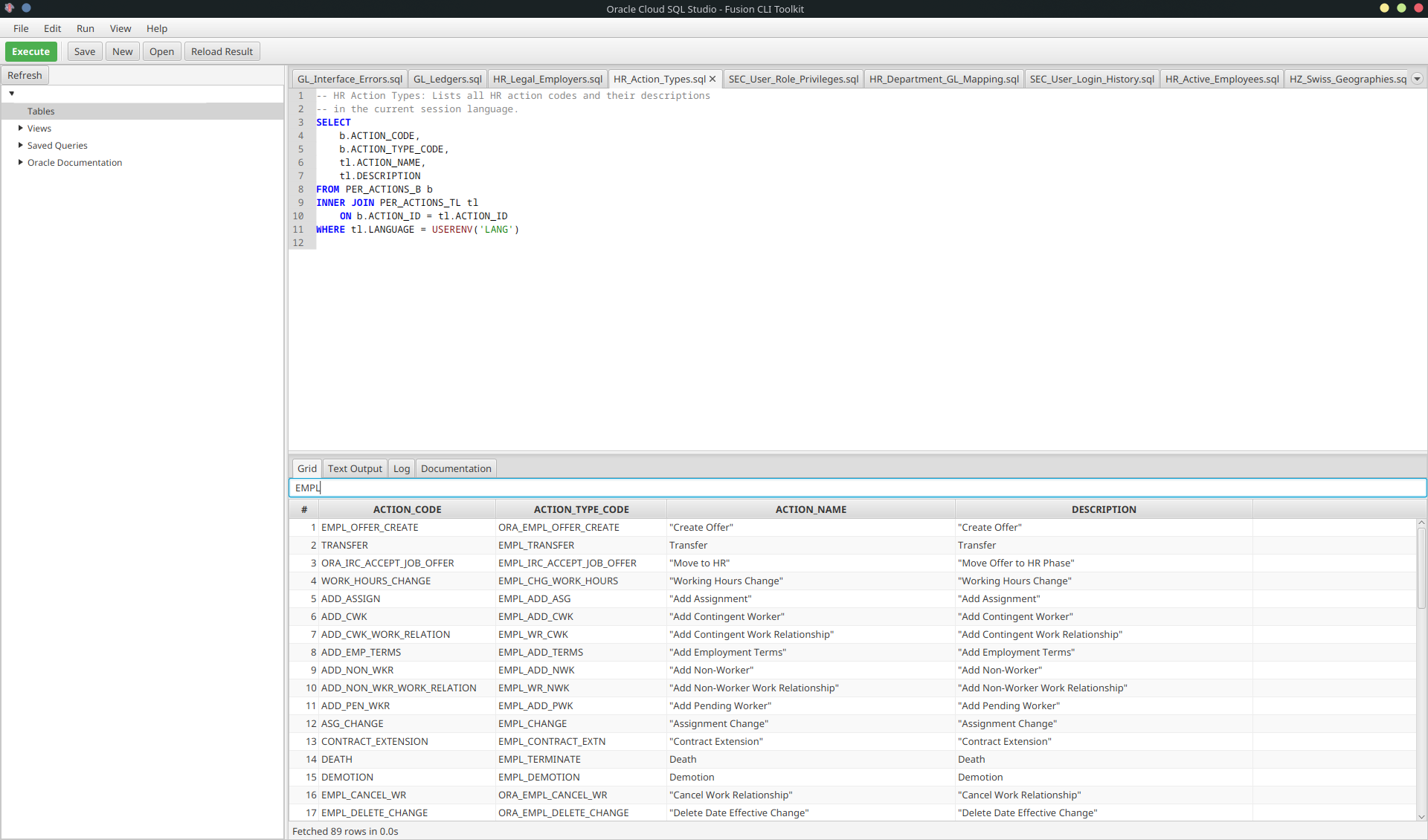
Getting Started with Oracle Cloud SQL Studio v2.0
Prerequisites
- OpenJDK 17 or later installed on your machine, with the
JAVA_HOMEenvironment variable set correctly. - Fusion CLI Toolkit downloaded from fusiontoolkit.com.
- Oracle Cloud credentials configured using the
set-configcommand (see below).
First, configure your Oracle Cloud credentials and license key:
java -jar fusion-cli-toolkit.jar set-config \
    --username="YOUR_USERNAME" \
    --password="YOUR_PASSWORD" \
    --hostname="https://your-oracle-cloud-pod.fa.ocs.oraclecloud.com:443" \
    --licenseKey="YOUR_LICENSE_KEY"
(For detailed configuration instructions, see the Fusion Toolkit Documentation).
Launch Oracle Cloud SQL Studio
There are two ways to launch Oracle Cloud SQL Studio. On Windows, you can double-click the included .bat file. Alternatively, use the command line:
java -jar fusion-cli-toolkit.jar oracle-cloud-sql-studioThe application will open in a maximized window with the schema browser on the left, the query editor in the center, and the results panel below. Any .sql files already present in the ./SQL/ directory will be loaded automatically into separate tabs.
Write and Execute Your First Query
Click New in the toolbar or press CTRL+N to create a new worksheet. Type a query to retrieve recent invoices from your Oracle Cloud ERP instance:
SELECT invoice_num, vendor_name, invoice_amount, invoice_date
FROM AP_INVOICES_ALL
WHERE invoice_date >= SYSDATE - 30
ORDER BY invoice_date DESC
Press CTRL+Enter or click the Execute button in the toolbar to run the query. Results will appear in the panel below the editor, and the status bar will show execution time and row count. The results are automatically saved as a CSV file alongside your SQL file for later reference.
Practical SQL Queries for Oracle Cloud ERP Administrators
Below are several useful queries that Oracle Cloud ERP administrators run regularly. Save each one as a .sql file in the SQL directory, and they will appear in the schema browser for quick access.
List Recent Invoices with Hold Status
SELECT aia.invoice_num,
       pv.vendor_name,
       aia.invoice_amount,
       aia.invoice_currency_code,
       aia.invoice_date,
       aha.hold_lookup_code,
       aha.hold_reason
FROM AP_INVOICES_ALL aia
JOIN POZ_SUPPLIERS_V pv ON aia.vendor_id = pv.vendor_id
LEFT JOIN AP_HOLDS_ALL aha ON aia.invoice_id = aha.invoice_id
    AND aha.release_lookup_code IS NULL
WHERE aia.invoice_date >= SYSDATE - 30
ORDER BY aia.invoice_date DESC
Check User Roles and Permissions
SELECT fu.username,
       ppnf.full_name,
       fur.role_name,
       fur.role_common_name
FROM FND_USER fu
JOIN PER_PERSON_NAMES_F ppnf ON fu.person_id = ppnf.person_id
    AND ppnf.name_type = 'GLOBAL'
    AND SYSDATE BETWEEN ppnf.effective_start_date AND ppnf.effective_end_date
JOIN FND_USER_ROLE_ASSIGNMENTS_V fur ON fu.user_guid = fur.user_guid
WHERE fu.suspended = 'N'
ORDER BY fu.username, fur.role_name
Find Suppliers by Name or Number
SELECT ps.vendor_id,
       ps.segment1 AS vendor_number,
       ps.vendor_name,
       ps.vendor_type_lookup_code,
       pssa.vendor_site_code,
       pssa.country
FROM POZ_SUPPLIERS ps
JOIN POZ_SUPPLIER_SITES_ALL_M pssa ON ps.vendor_id = pssa.vendor_id
WHERE UPPER(ps.vendor_name) LIKE UPPER('%search_term%')
ORDER BY ps.vendor_name
Audit GL Journal Entries
SELECT gjh.name AS journal_name,
       gjh.period_name,
       gjl.entered_dr,
       gjl.entered_cr,
       gjl.description AS line_description,
       gcc.segment1 || '-' || gcc.segment2 || '-' || gcc.segment3 AS account,
       gjh.creation_date,
       gjh.created_by
FROM GL_JE_HEADERS gjh
JOIN GL_JE_LINES gjl ON gjh.je_header_id = gjl.je_header_id
JOIN GL_CODE_COMBINATIONS gcc ON gjl.code_combination_id = gcc.code_combination_id
WHERE gjh.creation_date >= SYSDATE - 7
ORDER BY gjh.creation_date DESC
Save these queries as .sql files in your SQL directory (e.g., ./SQL/recent-invoices.sql). They will automatically appear in the schema browser under Saved Queries, ready to open with a double-click.
Why Oracle Cloud SQL Studio Replaces SQL Developer for Cloud ERP
Many Oracle Cloud ERP administrators and consultants attempt to use BI Publisher as their SQL query tool, simply because it is the only option Oracle provides out of the box. However, BI Publisher was designed for report generation, not interactive querying. The limitations are significant:
- 200-row limit in BI Publisher vs. up to 200,000 rows in Oracle Cloud SQL Studio. When investigating data issues, 200 rows is rarely enough.
- Data model creation required in BI Publisher. Every new query requires navigating to the data model editor, creating a new model, writing the SQL, and then creating a report to execute it. Oracle Cloud SQL Studio lets you type SQL and press CTRL+Enter.
- No syntax highlighting in BI Publisher. The BI Publisher SQL editor is a plain text box with no coloring, no auto-formatting, and no find-and-replace. Oracle Cloud SQL Studio provides full syntax highlighting with search functionality.
- No local file management in BI Publisher. Queries are stored on the Oracle Cloud server and require navigating folders to find them. Oracle Cloud SQL Studio stores queries as local
.sqlfiles that you can version-control, share with colleagues, or back up. - No CSV export in BI Publisher query mode. Getting data out of BI Publisher requires running a full report. Oracle Cloud SQL Studio automatically saves every result set as a CSV file.
- Familiar interface for SQL Developer users. The schema browser, tabbed editor, and results panel layout mirrors what administrators already know from SQL Developer, minimizing the learning curve.
For Oracle consulting partners managing multiple client environments, the productivity gain is even more pronounced. Instead of navigating BI Publisher in each client’s Oracle Cloud instance, you can connect Oracle Cloud SQL Studio to any environment by switching the configuration, and keep your library of diagnostic queries locally organized.
Oracle Cloud SQL Studio v2.0 brings back the SQL Developer experience that ERP administrators and consultants relied on before their migration to Oracle Cloud. With the schema browser, multi-tab editor, syntax highlighting, and automatic CSV export, it eliminates the BI Publisher workaround and restores fast, interactive SQL querying for Oracle Cloud ERP databases.
To get started, visit the documentation page for installation instructions, or learn more about all features on the Oracle Cloud SQL Studio product page.