
To run SQL queries in Oracle Fusion Cloud, use SQL Studio with a configured Oracle profile. The editor executes SELECT-only statements through the BI Publisher reporting path and saves the returned result as CSV. Your reporting account still needs access to the required objects.
Oracle Fusion does not expose a native database connection for SQL Developer. Oracle explains the connection restriction. SQL Studio provides a desktop query workflow through the available reporting service.
Extract the current Windows x64 or Linux x64 package. Its private Java runtime is included. Configure a named test profile with your approved Oracle origin and username. The launcher prompts for the Oracle password and Toolkit licence, then stores the profile locally in encrypted form.
fusion-toolkit --profile erp-test set-config \
  --environment test \
  --username YOUR_ORACLE_USERNAME \
  --origin https://YOUR_TEST_POD.fa.ocs.oraclecloud.com
On Windows, launch fusion-toolkit-sql-studio.exe. On Linux, run ./bin/fusion-toolkit-sql-studio from the extracted package. Select the intended profile before executing a query. The SQL Studio documentation covers the current workspace and export controls.
Start with a result you can check in Oracle. The existing geography example below joins reporting views used by the original worksheet. Confirm that the selected account can read those views before using it as a test. Keep the selected columns explicit when adapting the export for another system.
SELECT
    geo.GEOGRAPHY_ID, geo.COUNTRY_CODE, geo.PRIMARY_GEOGRAPHY_NAME,
    geo.LANGUAGE_CODE, geo.IDENTIFIER_VALUE, geo.*, terr.*, id.*
FROM
    HZ_EXP_GEOGRAPHIES_V geo
    LEFT JOIN HZ_EXP_TERR_GEOGRAPHIES_V terr on geo.geography_id = terr.geography_id
    LEFT JOIN HZ_GEOGRAPHY_IDENTIFIERS_VL id on geo.geography_id = id.geography_id
ORDER BY geo.geography_id DESC;
The HCM action example retrieves the action code and translated name for the specified language. Table visibility and the reporting account determine what it can return. An empty result needs an access and scope check before it is treated as missing setup.
SELECT
    b.ACTION_CODE, b.ACTION_TYPE_CODE, tl.ACTION_NAME, tl.DESCRIPTION
FROM PER_ACTIONS_b b
INNER JOIN PER_ACTIONS_TL tl on b.ACTION_ID = tl.ACTION_ID
WHERE tl.LANGUAGE='US';
Run one statement and compare the returned identifiers and values with a known application record. Inspect the saved CSV delimiter before importing it into Excel or another consumer. Save the reviewed worksheet so the same statement can be tested again after an Oracle update.
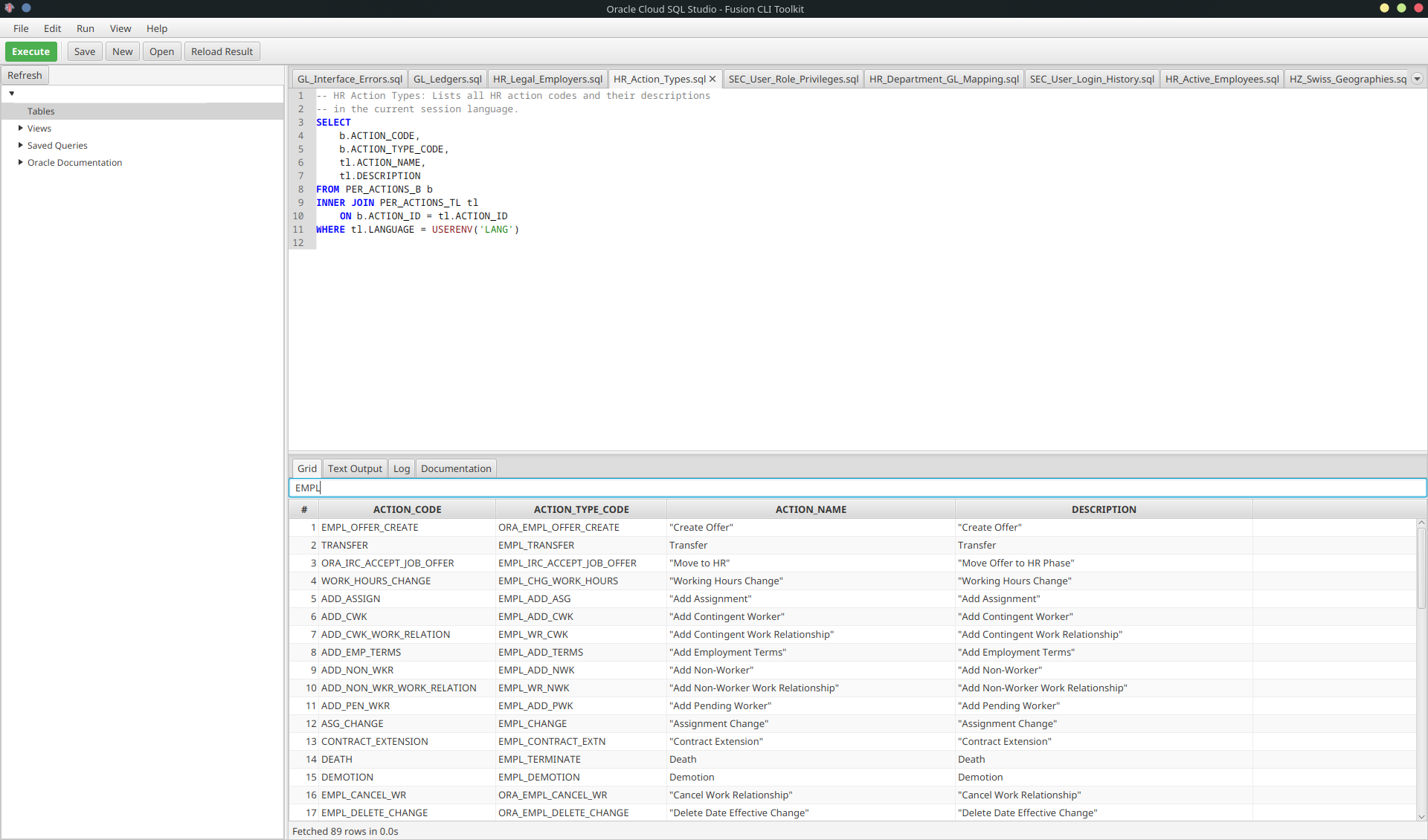
The image records an earlier editor layout. Use the maintained package and current documentation for the available controls. When the reviewed query needs a scheduled export, save it as a SQL file and run it through the CLI under the same named profile.
fusion-toolkit --profile erp-test sql-query \
  --queryFile ./geographies.sql \
  --outputFile ./geographies.csv
The SQL Studio v2 feature article documents the earlier editor release. Use the current installation steps here when starting with the maintained package. For a tool comparison, read the SQLConnect alternative guide.
Run the SQL example in SQL Studio to inspect the returned rows and save the result as CSV before scheduling the export.
You can also use an LLM with the Fusion Toolkit AI Administrator skill and ask, "Show the amount and currency for invoice DEMO-INV-1042 in our test business unit." It can retrieve supported Oracle records in plain language without requiring you to write the query. Start with a result you can check in your test environment.